Using VTUData
This tutorial provided an overview of how to use the VTUData class to store and write data in the VTK unstructured mesh format. This format is commonly used in scientific computing for visualizing complex data sets. For more information, refer to the VTUData class API in vtudata.hpp
Class Overview
The VTUData class provides facilities for storing both point and cell data in the VTK unstructured mesh format. For more information on the VTK file formats, refer to the VTK File Formats - Unstructured grid.
It includes the following data members:
coord: A vector storing 3D coordinates of points.
value: A vector storing values associated with points.
connect: A vector storing connectivity information for cells.
offset: A vector storing offset information for cells.
types: A vector storing cell types.
Additionally, it includes a method WriteVTK() for writing the VTU data to a VTK file.
Usage
To use the VTUData class, follow these steps:
1. Creating VTUData Object
To begin using the VTUData class, you first need to create an instance of it:
VTUData vtu_data;
2. Adding Point Data
You can add point data using the coord and value vectors. Here’s an example of adding 7 particles with random coordinates and associated values:
for (long i = 0; i < 7; i++) {
    for (long k = 0; k < 3; k++) {
        vtu_data.coord.PushBack((VTUData::VTKReal)drand48());
    }
    vtu_data.value.PushBack((VTUData::VTKReal)drand48());
}
3. Adding Cell Data
You can add cell data by specifying the connectivity, offsets, and types of cells. For example, to add a tetrahedron and a triangle:
// Add tetrahedron
vtu_data.types.PushBack(10); // VTK_TETRA (=10)
for (long i = 0; i < 4; i++) vtu_data.connect.PushBack(i);
vtu_data.offset.PushBack(vtu_data.connect.Dim());

// Add triangle
vtu_data.types.PushBack(5); // VTK_TRIANGLE(=5)
for (long i = 4; i < 7; i++) vtu_data.connect.PushBack(i);
vtu_data.offset.PushBack(vtu_data.connect.Dim());
For a list of available cell types, refer to the cell types documentation.
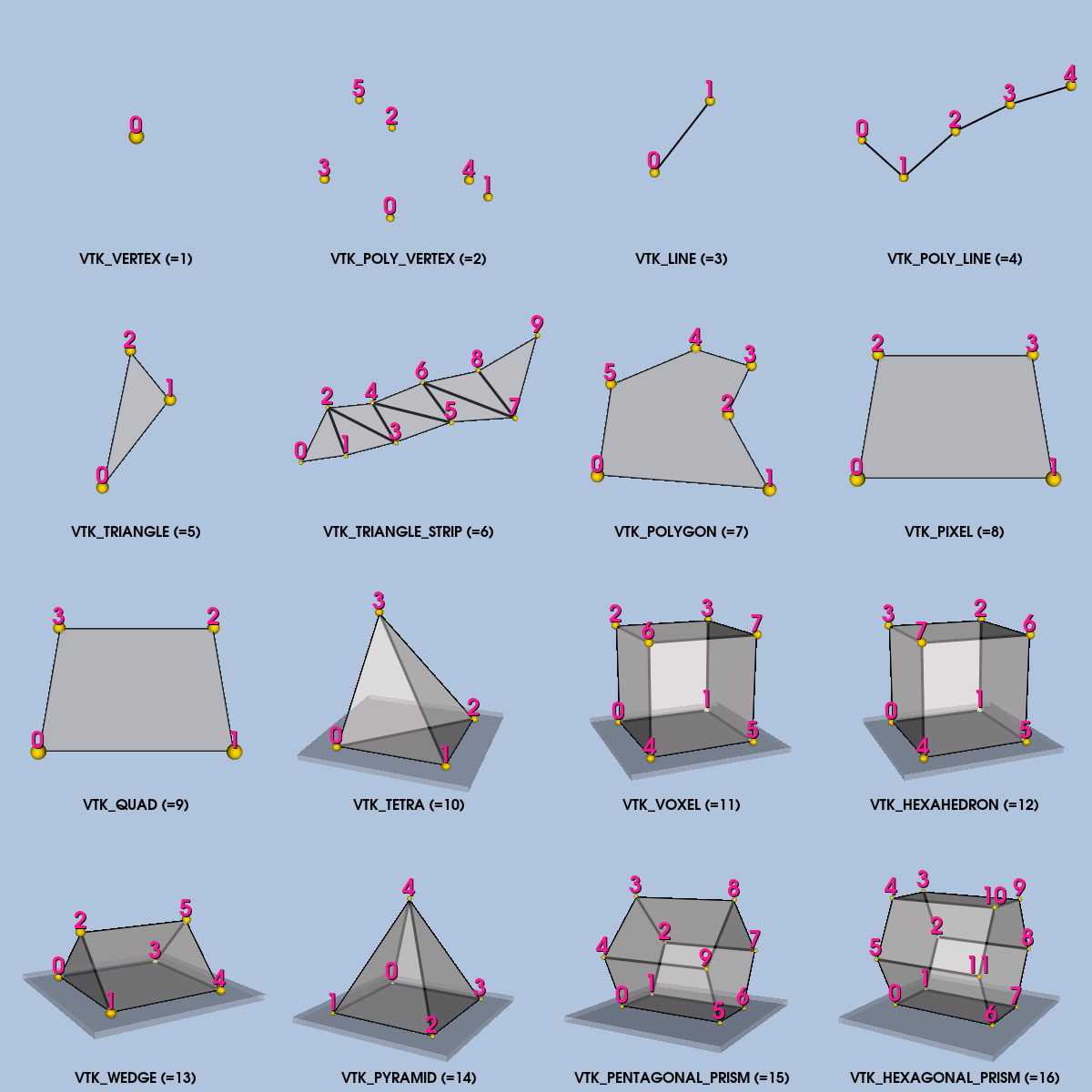
4. Writing Data to VTK File
Once you have added the necessary data, you can write it to a VTK file using the WriteVTK() method:
vtu_data.WriteVTK("vtudata-test");
This will generate a VTK file named “vtudata-test.vtk” containing the stored data.